
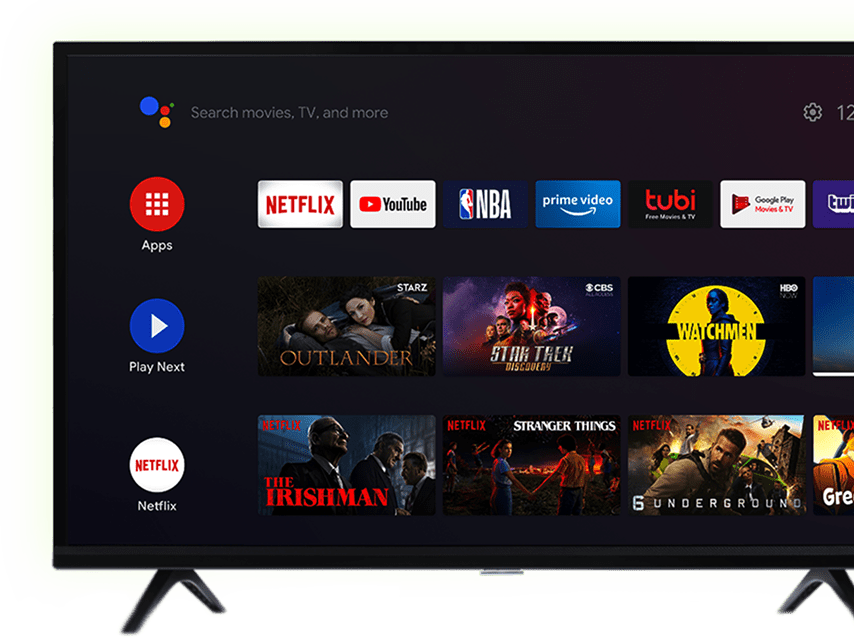
Quick answer: to watch IPTV on a Smart TV, install an IPTV player from your TV’s app store, then add your Xtream Codes login or M3U link from your provider. App availability depends on the TV brand and model year. If your TV has no suitable app, a Fire TV Stick or an Android TV box is the easiest fix.
What you need
- A Smart TV connected to the internet. Ethernet is more stable than Wi-Fi
- An IPTV player app that is available for your TV
- Your login details from your provider. See M3U vs Xtream Codes
- About 10 Mbps for HD and 25 Mbps for 4K
IPTV on different Smart TV brands
| TV platform | Where to find apps | Notes |
|---|---|---|
| Samsung (Tizen) | Samsung Smart Hub app store | Fewer IPTV apps. Check availability for your model year |
| LG (webOS) | LG Content Store | A few IPTV players are available. Check your model |
| Android TV / Google TV (Sony, Philips, TCL and others) | Google Play on the TV | Widest choice, including TiviMate and IPTV Smarters Pro |
| Fire TV Edition TVs | Amazon Appstore | Works like a Firestick. See setting up IPTV on a Firestick |
| Roku | Roku Channel Store | IPTV player options are limited |
App stores change often, so search your TV’s store for the player name and check that it supports your login type before you pay for anything.
How to set up IPTV on a Smart TV
- Open your TV’s app store and search for an IPTV player
- Install the app and open it
- Choose Xtream Codes or Add playlist (M3U)
- Enter the server URL, username and password, or paste the M3U link
- Wait for the channel list to load, then add the TV guide link if one was provided
Some TV apps ask you to upload the playlist from a website on your phone or computer, using a code shown on the TV. Follow the on-screen instructions.
If your TV has no IPTV app
- Add a streaming stick or box. A Fire TV Stick or an Android TV box plugs into HDMI and gives you the full range of IPTV apps
- Cast from a phone or computer. Some apps support casting to a TV, though support differs by app
- Use a computer. Connect it to the TV by HDMI. See IPTV for PC and Mac
For app options, see the best IPTV player apps and our TiviMate setup guide for Android-based TVs.
Tips for smooth playback on a Smart TV
- Use Ethernet where possible. Many TVs have weak Wi-Fi antennas
- Keep the TV software and the IPTV app updated
- Free up storage and close other apps
- Pick HD instead of 4K if the stream stutters
- If you buffer, follow our IPTV buffering guide
Common problems
- App not in the store: your model may not support it. Use a streaming stick instead
- Login fails: re-copy the details, with the correct port and no spaces
- Playlist will not load: a very large M3U can overload an older TV. Try Xtream Codes
- No TV guide: add the XMLTV link if your provider gave one
- Max connections reached: close the stream on another device. See how many IPTV connections you need
Frequently asked questions
Which Smart TVs work best for IPTV?
Android TV and Google TV models have the widest choice of apps. Samsung and LG TVs have fewer options and depend on the model year.
Do I need a Firestick if I have a Smart TV?
Not always. If your TV has a suitable IPTV app, you can use it directly. A stick is useful when the app is missing or slow.
Can I use the same account on my TV and my phone?
Yes, within your connection limit.
Is IPTV legal on a Smart TV?
The technology is legal. Legality depends on whether the service has rights to the content. See is IPTV legal.
Next steps
Check which IPTV apps your TV offers, then add your login. If you still need a provider, compare the available subscription plans and ask support which login types are included.