Before you start: Confirm that your Android device and chosen player are compatible with your subscription. App availability and menu labels can vary by device and country. Use the IPTV device setup checklist to prepare your device details and login method before installation.
Install a compatible player from your device’s app store or the app developer’s verified website. If you are unsure which app to use, contact 1IPTV support before downloading.
Open the player and choose the login method that matches the details supplied for your subscription.
Enter the username, password and server or playlist URL exactly as supplied. Keep these details private.
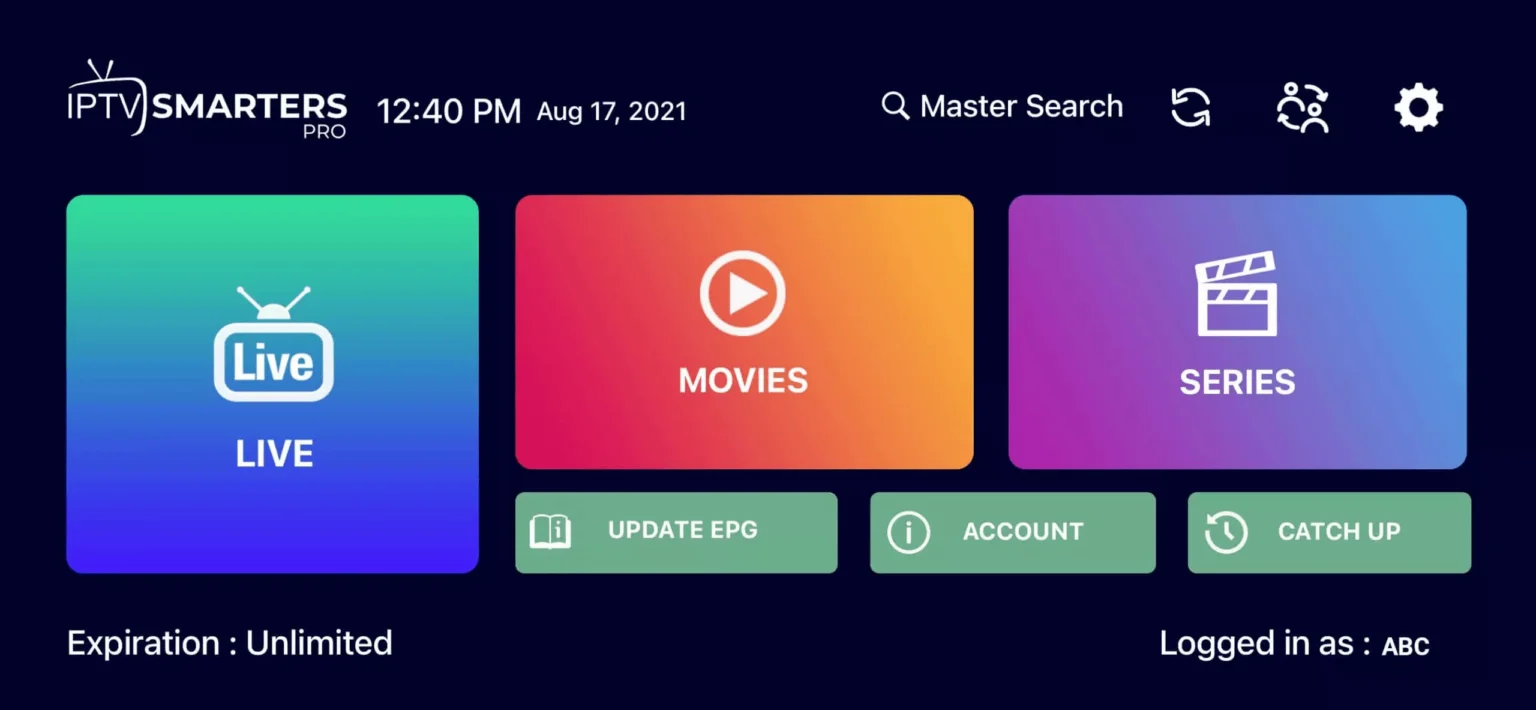
Save the account and let the playlist load. Open a category and select a channel available in your plan.
If login fails, check for extra spaces and confirm the server address with support. Before choosing a subscription, compare the plan durations and connection options and confirm availability for your location.
WINDOWS / MAC
Windows and Mac setup: Confirm the player’s system requirements for your version of Windows or macOS before installing. Use the developer’s verified download source rather than an unfamiliar download site.
Download the compatible installer and follow the developer’s installation instructions.
Open the player and select the login method matching your subscription details.
Enter your username, password and server or playlist URL exactly as provided.
Save the account, allow the playlist to load and select content available in your plan.
Need help? Check for extra spaces in your login details, confirm that your subscription is active, and restart the player. If you still cannot connect, contact 1IPTV support with your device, operating system, player name and error message. Do not post your password or playlist URL publicly.
FIRETV STICK
How to Set Up IPTV on Fire TV Stick
1: From your device’s home screen, hover over the Search option.
2. Click on Search.
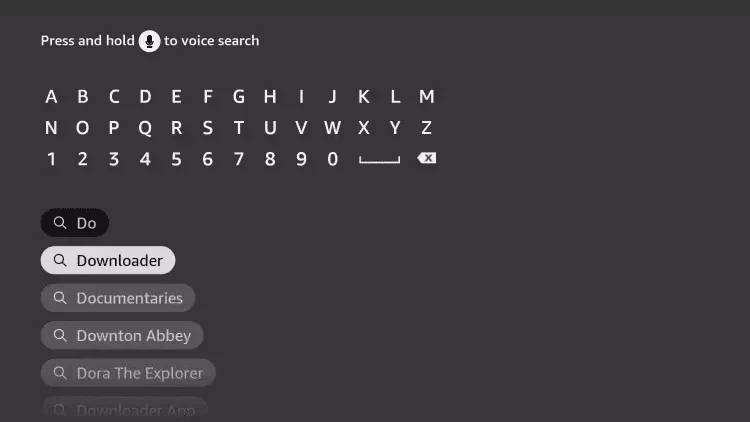
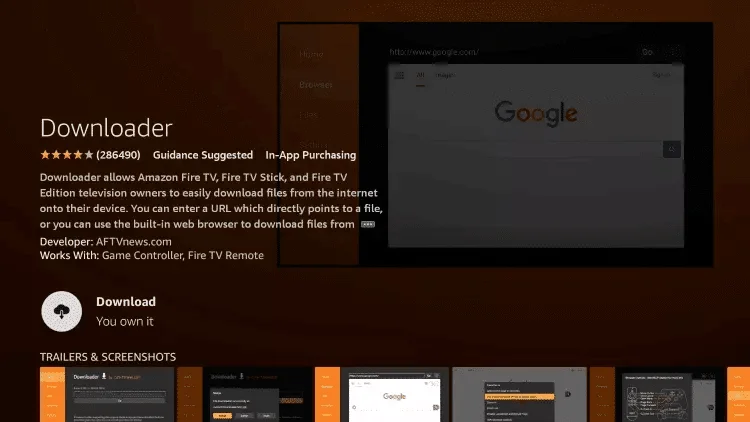
3.Search for and select Downloader
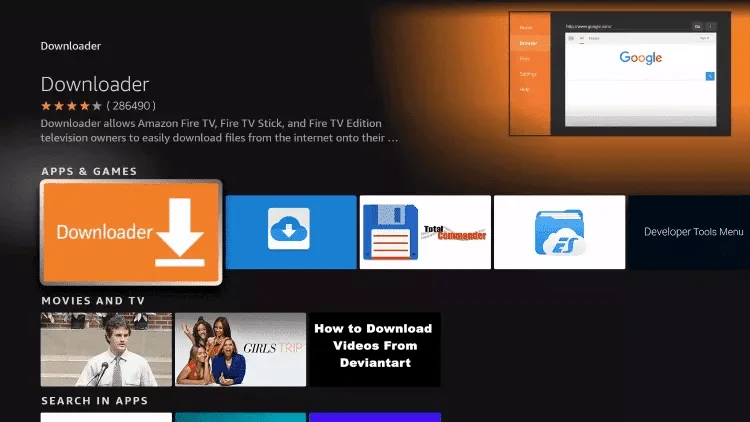
4. Choose the Downloader application.
5. Click on Download.
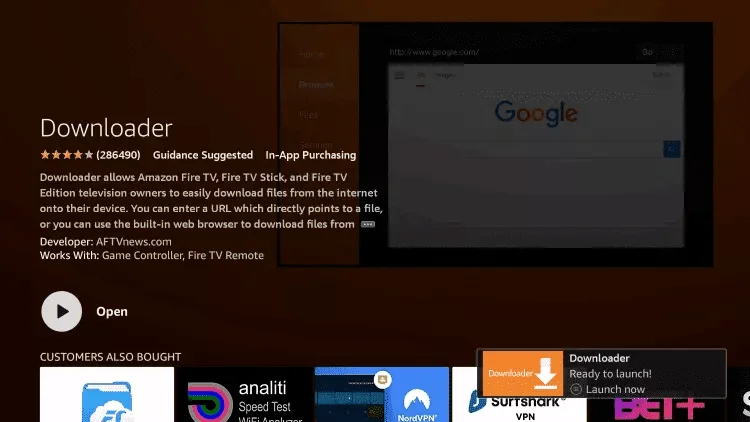
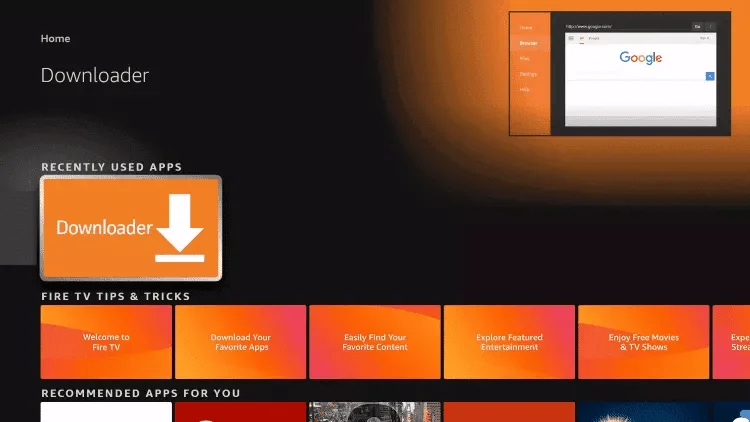
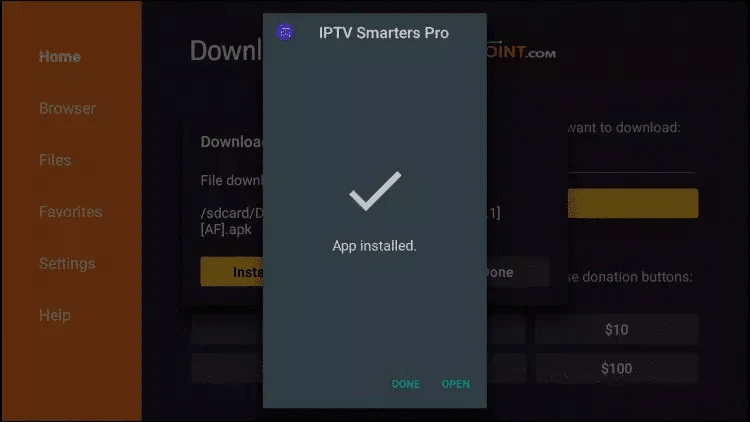
6.Once the application installation is complete, click on Open.
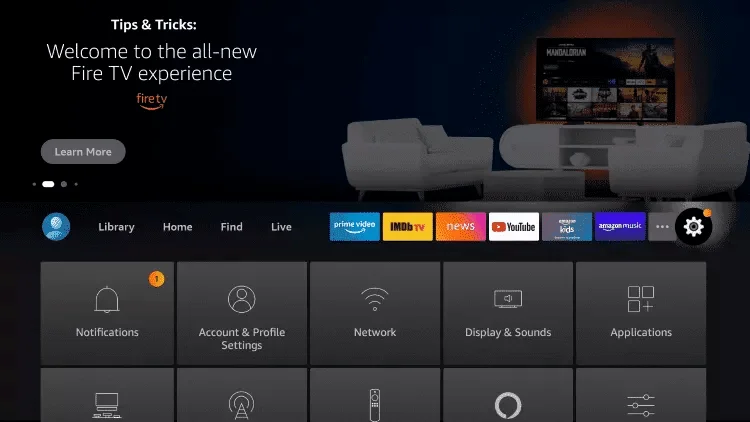
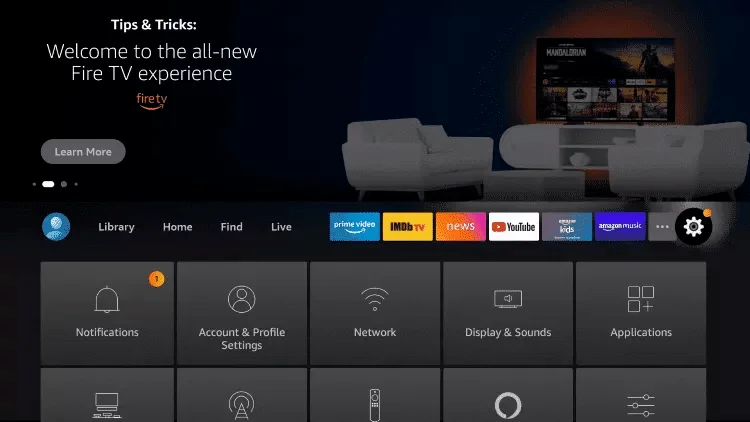
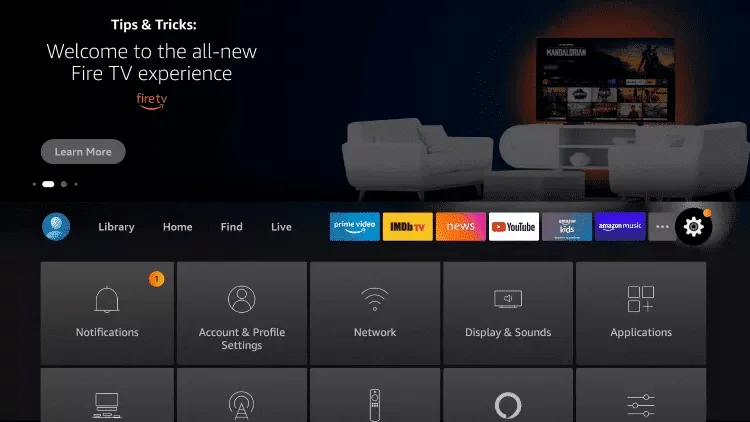
7. Go back to the home screen and open Settings.
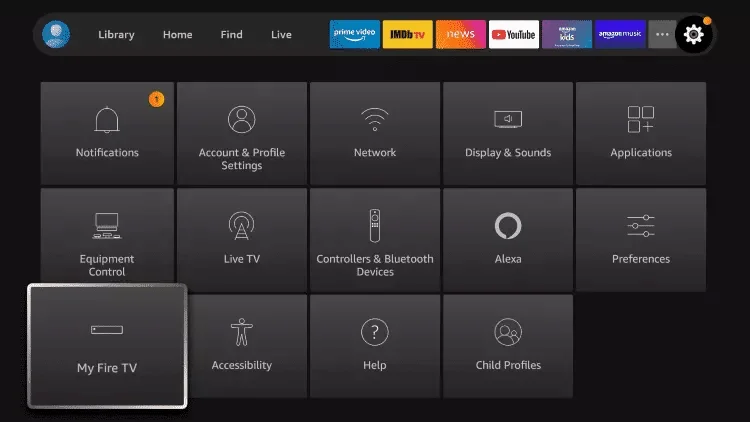
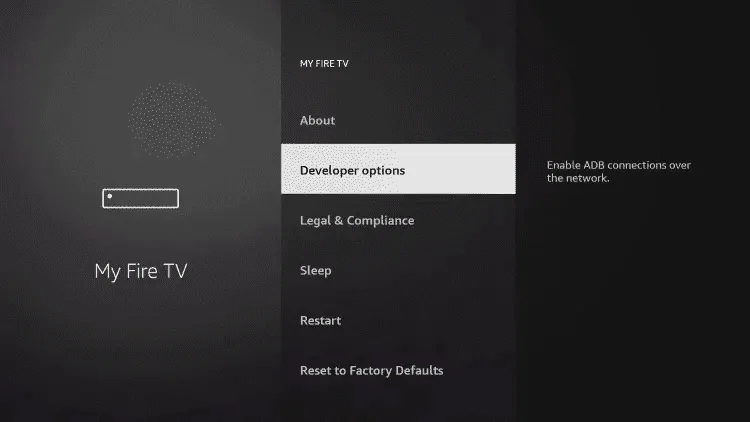
8. Click on My Fire TV.
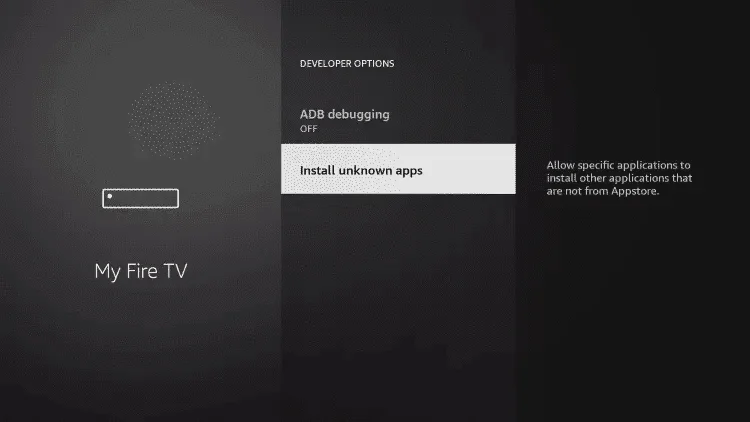
9. Select Developer options.
10. Click on Install Unknown Apps.
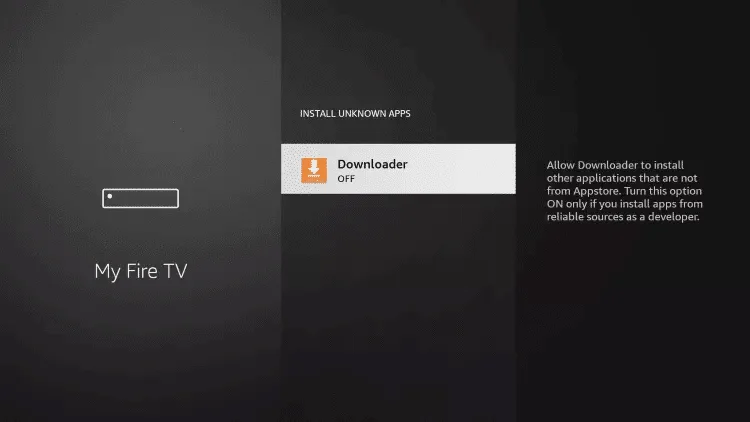
11. Find the Downloader app and click on it.
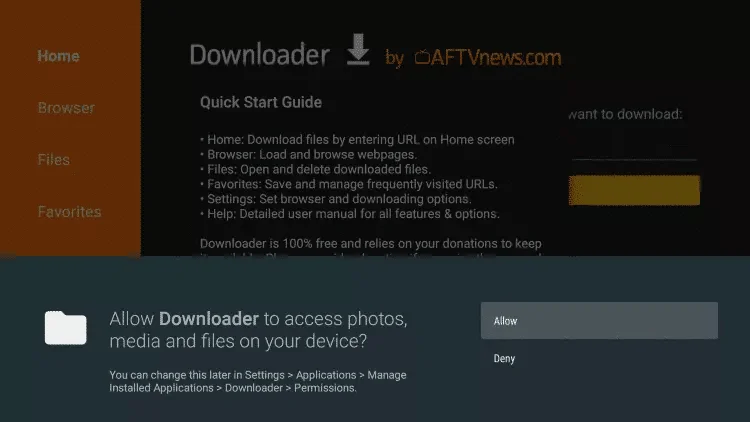
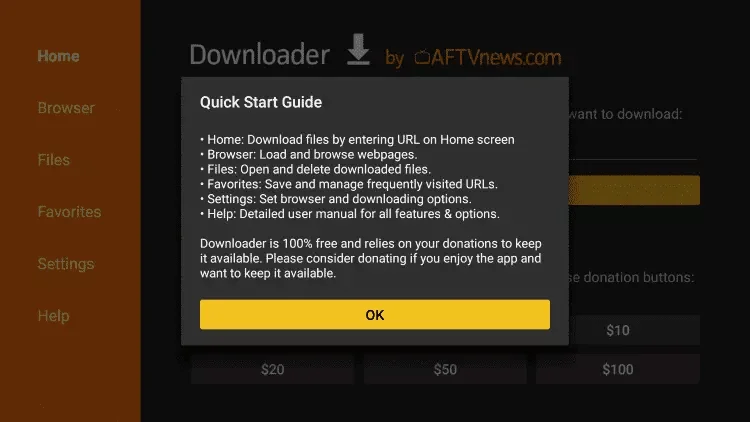
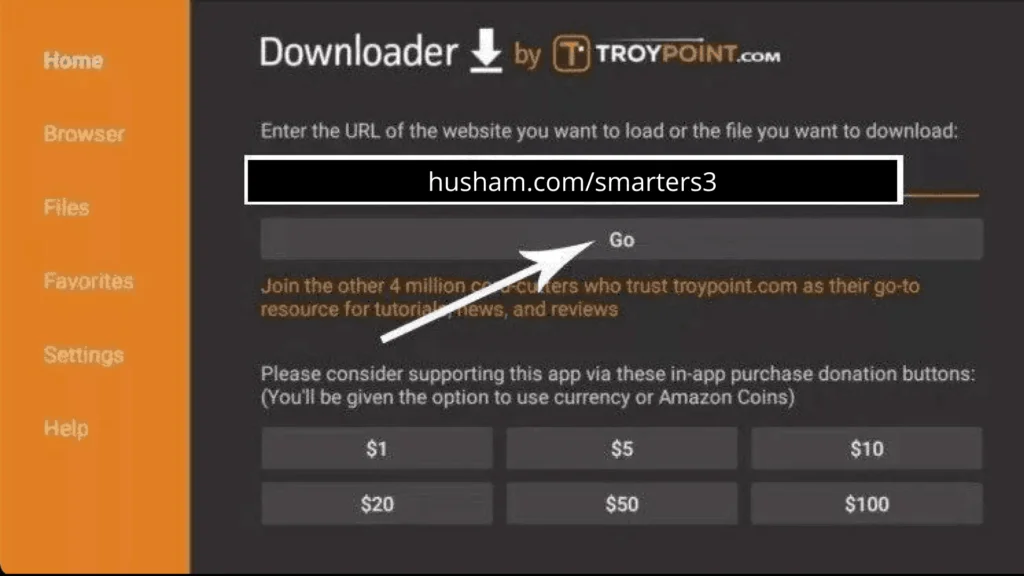
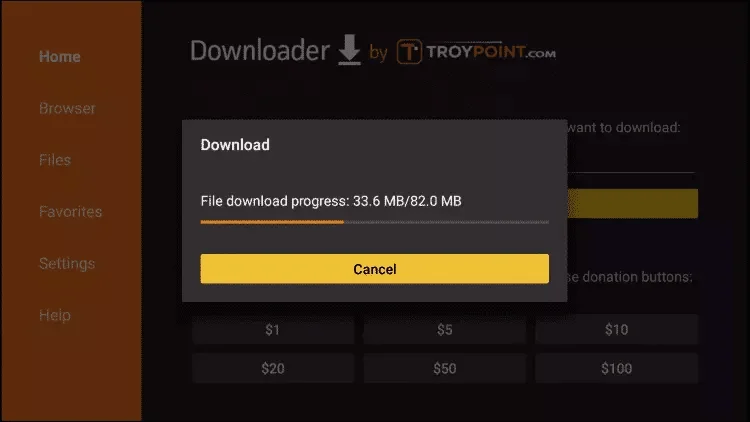
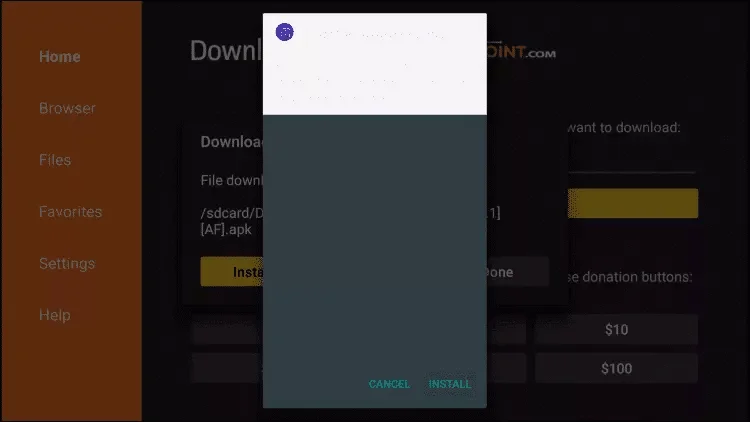
12. This will enable Unknown Sources for the Downloader app, allowing sideloading on your device.
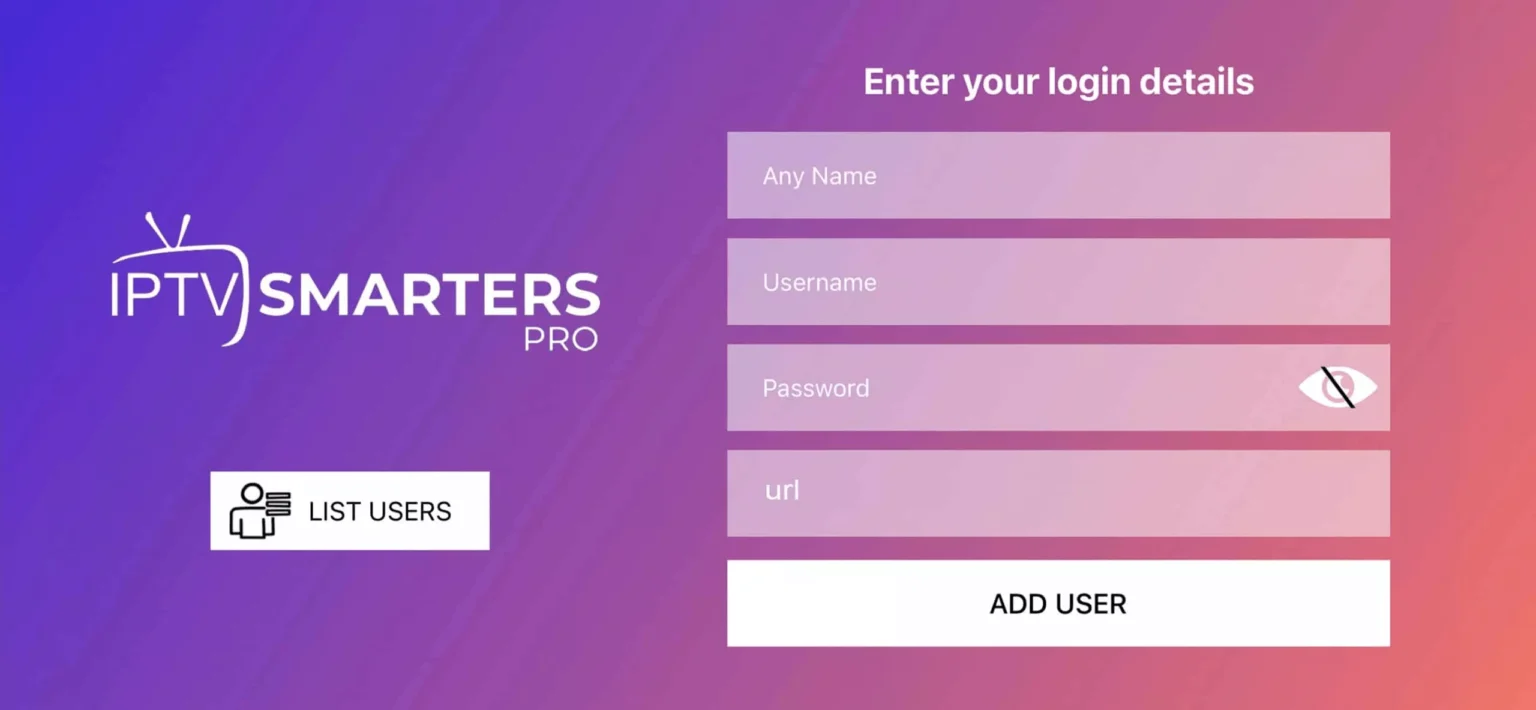
20. Open your compatible player and choose the login method that matches your subscription details.
21. Enter the username, password and server or playlist URL supplied for your 1IPTV subscription. Keep your login details private. If the player or login screen differs from this guide, contact support with your device and player version.
FIRETV STICK
How to Set Up IPTV on iPhone and iPad
Step 1: Check that your iPhone or iPad meets the player’s requirements before installing. The Smarters Player Lite listing currently requires iOS or iPadOS 15.6 or later and identifies the developer as WHMCS SMARTERS. Review the current compatibility details and any in-app purchases in your own App Store.
Step 2: Install and open the compatible player, then select the login method matching your subscription details. Keep passwords and playlist addresses private.
Step 3: Enter the login details supplied for your 1IPTV subscription and save the account. Menu labels can vary by player version.
Step 4: Allow the playlist to load.
Step 5: Open the live TV section if it is available in your player and plan.
Step 6: Open an available category and tap the item you want to play.
Step 7: Use the player’s on-screen playback controls to adjust the view or enter full screen where supported. Controls can vary by app version and device. If your screen differs, contact support with your device model, player version and exact error message.
Smart TV
How to Set Up IPTV on Samsung Smart TV
Check compatibility first: Apps available on Samsung and LG Smart TVs can differ by TV model, software version and country. Confirm which player supports your subscription before choosing a plan.
Samsung Smart TV
Open your TV’s Apps menu and search for a compatible player.
If it is available for your TV, install it and follow the player developer’s setup instructions.
Enter the subscription details using the login method supported by the player. Some players require separate activation or payment; check the developer’s terms.
LG Smart TV
Open the LG Content Store or Apps menu, depending on your model.
Check whether your chosen player is available for your region and TV model.
Install the compatible player and follow its setup instructions using your supplied subscription details.
Check the internet connection, update your TV software and recheck your login details. If the app is unavailable or an error persists, contact 1IPTV support with the TV model, player name and exact error message. Keep your password private.